February 25, 2026
A Mercury theme allows you to customize layout and content elements to fit the exact needs of your project. With Vite powering the development workflow, theme creation becomes fast and efficient.

Instead of layering additional CSS on top of existing styles, a theme replaces the default styling in a controlled and maintainable way. Colors, typography, and component styles are managed centrally using SCSS variables and mixins, rather than being spread across many individual CSS rules.
In practice, this means that a color or font change happens in one central place, not across dozens of override rules.
This blog post walks you through creating your own Mercury theme and packaging it as an OpenCms module. With Vite providing instant live previews, iterating on your layout becomes faster and more efficient than ever.
Before you can work on your own theme CSS, you have to prepare your environment as described in the previous dev blog article "Modern front-end development in OpenCms with Vite". Be sure to complete the following steps of that article:
git clone https://github.com/alkacon/mercury-template.git
Note: for this blog, we will work in the subfolder "demo-scss" of the Mercury examples project. All files and folders referred to are located in this subfolder.
Vite needs some information about the local environment and the OpenCms site to work with. This information is provided by the configuration file "vite.env.js" in the "demo-scss" folder.
module.exports = {
    OPENCMS_VITE_SECRET: process.env.OPENCMS_VITE_SECRET || "??????????",
    OPENCMS_SERVER: process.env.OPENCMS_SERVER || "http://localhost:8080",
    OPENCMS_SITE: process.env.OPENCMS_SITE || "/sites/default/",
    OPENCMS_WORKSPACE: process.env.WORKSPACE + "/mercury-examples",
    OPENCMS_VITE_REPLACE_CUSTOM: true,
    OPENCMS_VITE_ROOT: process.env.WORKSPACE + "/mercury-examples/demo-scss/template-src/",
    OPENCMS_VITE_PREFIX: ['/template-src/', '/node_modules/'],
    OPENCMS_MERCURY_SCSS: "/scss/themes/demo/"
};
The necessary environment variables(OPENCMS_VITE_SECRET, OPENCMS_SERVER, OPENCMS_SITE, WORKPLACE) can be set in the users profile of your development system so that the original "vite.env.js" does not have to be modified. Alternatively, the configuration file can be directly changed.
The following variables have to be configured:
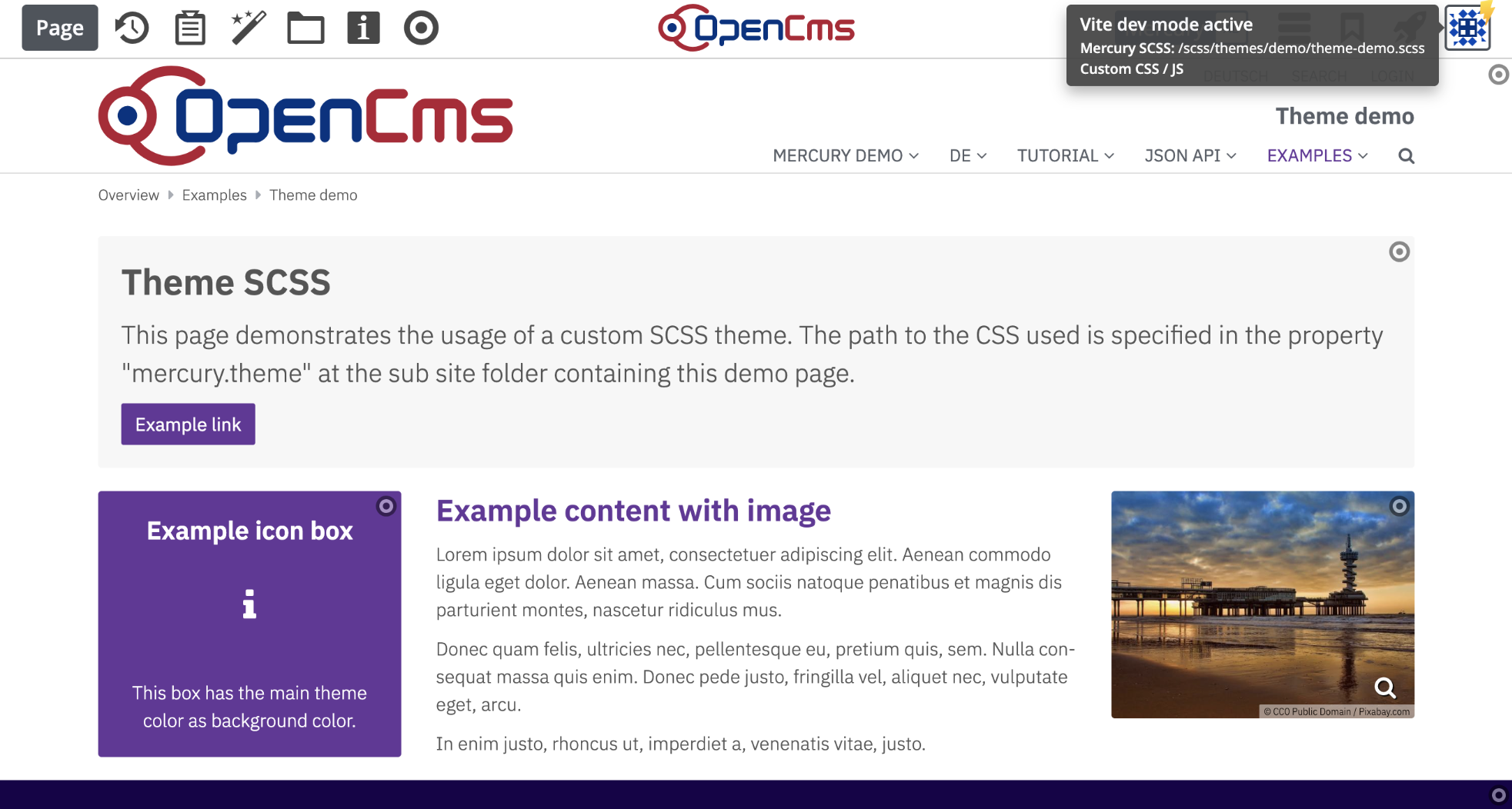
In your terminal window, launch the Vite proxy in the project folder using the following command:
npm run vite-proxy --workspace=demo-scss
Point your browser to the URL of the Vite proxy, followed by the OpenCms login path, usually "http://localhost:8099/system/login". Login to OpenCms with the user that has the Vite secret configured and switch to the site you configured in the Vite environment configuration.
Open the theme demo page "/mercury-examples/theme-demo/index.html" in the OpenCms page editor. The "User info" icon in the top right corner should now have a yellow bolt overlay that provides additional information when hovering it. This indicates that the Vite development mode is currently active for this page.
If you followed the instructions and configured the Mercury default demo as Vite site, you can now edit the theme demo to check if Vite works correctly.
The corresponding file "theme-demo.scss" file is located in the "template-src/scss/themes/demo/" subfolder of the example project "demo-scss/" subfolder.
In this file, you can change the main theme colors, text colors, used fonts and much more. Basically, every element from Mercury can be redesigned here.
Change the values of the variables "$main-theme" and "$main-theme-hover" to different values to see the effect on the example page immediately.
Feel free to change other variable values as well or import your own customized SCSS.
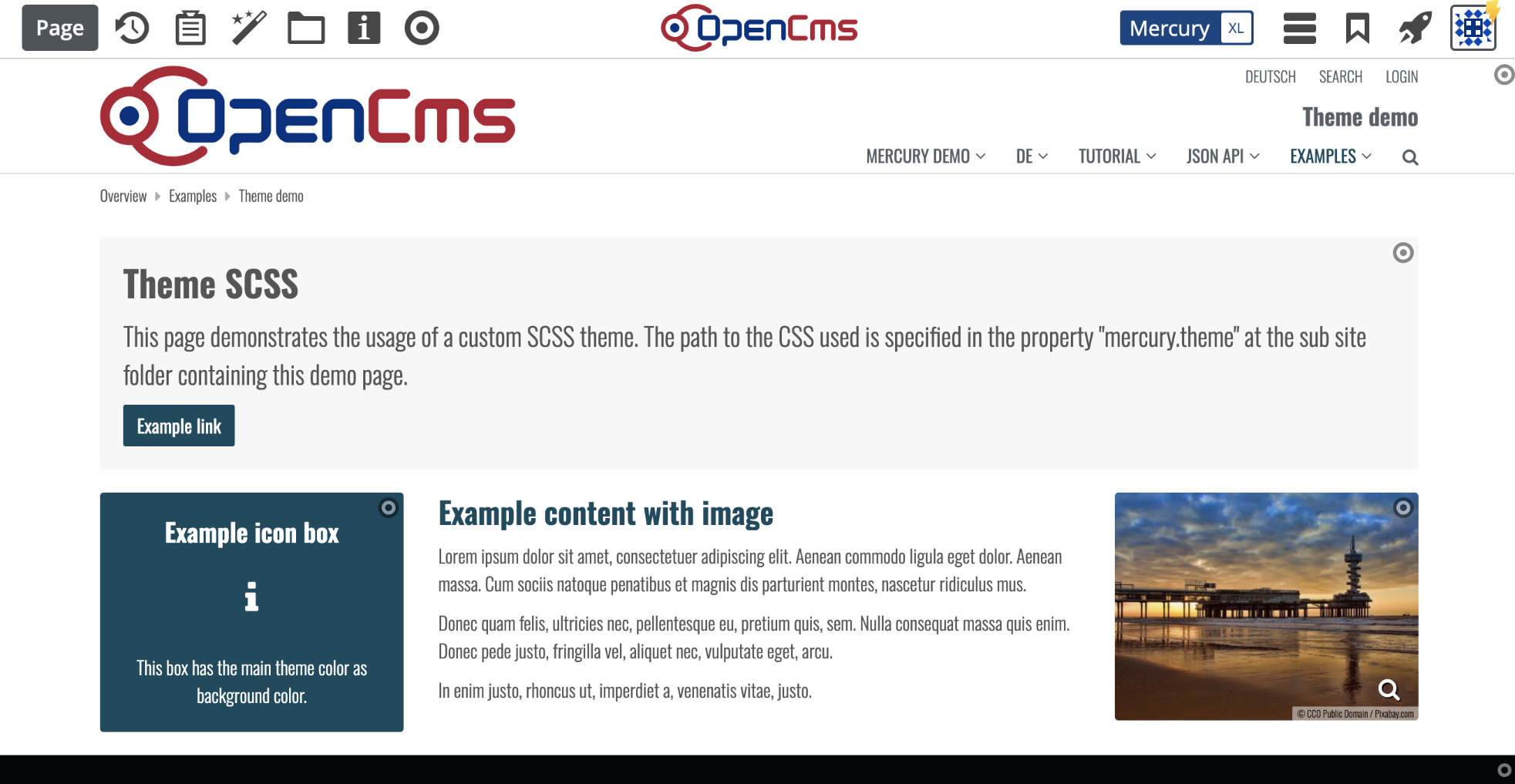
To switch the font family for all components, use the variable "$font-family-base". Change the value to "Oswald" in the example demo SCSS file to see the effects.
The Mercury default theme module provides various fonts, please have a look at the SCSS file of the Mercury template development project "mercury-template/template-src/scss/main/_font-definitions.scss" for details about the included fonts.
If you want to use your own specific font, you can define it with the variable "$fonts-preloaded-custom" and follow the pattern of "$fonts-preloaded-default" that is defined in the font definitions SCSS file.
Important: the font files have to be placed in a "fonts/" subfolder of an OpenCms module. Be sure to specify the correct module folder in the "templateThemeVfsDir" configuration variable of the "demo-scss/package.json" file.
After finishing development, you have to deploy the updated CSS file to your module to persist the changes. For the demo CSS, you have to follow these steps:
npm run css --workspace=demo-scss
Congratulations! You have successfully modified and deployed a theme for the Mercury template. Now you can start developing your own theme from scratch.