Date:
KW 23 / 2026


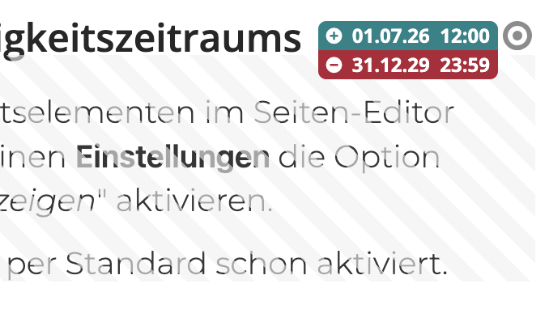
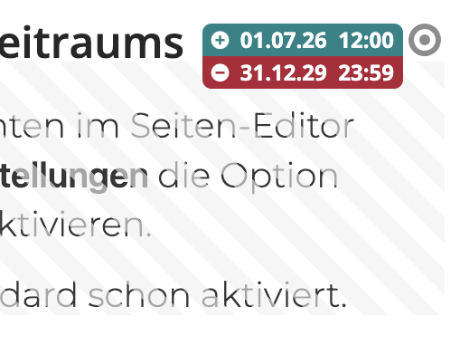
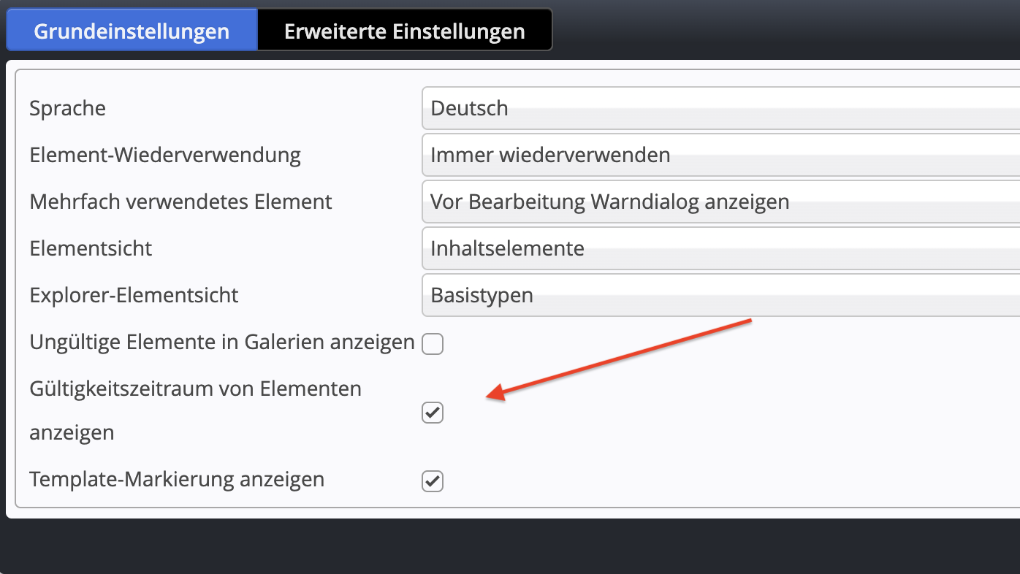
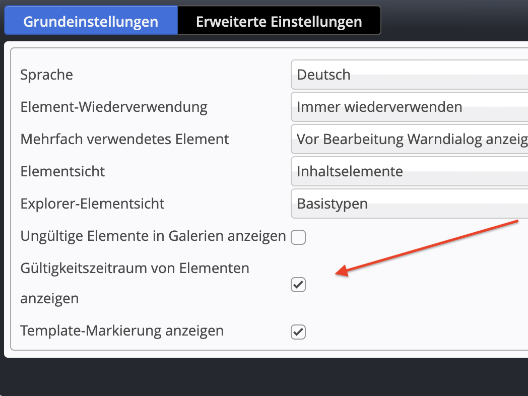
If a release or expiration date has been set for a content element and the user has activated the corresponding display option in the settings, the validity date will appear with the edit point directly next to the element.
If a release date has been set, it will be displayed with a green background. If an expiration date has been set, it will be displayed with a red background. If both are set, both time specifications will be displayed.
This applies to all content elements for which at least one of the two fields, "Release date" or "Expiration date," has been set. This also applies to elements that are currently valid and visible.
Inactive elements will continue to be displayed with a hatched background. The display of validity dates complements this representation, making the set time period visible directly in the page editor.
The release/expiration date will automatically display on all affected elements, including those in lists.