Skip to content

Create an llms.txt

With Mercury, you can create an llms.txt file in the root directory of a website. An llms.txt file provides AI applications with an overview of your website’s key content.

You select specific pages that you consider particularly relevant and write brief descriptions. Mercury then generates the file in the appropriate format based on this information.

You can create an llms.txt file in four steps:

1. Create a configuration

In the OpenCms Explorer, open the root directory of your website (/). In the Magic Wand menu, under Configurations, select the content type “llms.txt configuration.”

In the creation dialog, enter llms.txt as the file name and click OK. Make sure the file is located directly in the root directory of your website.

2. Define titles and sections

Open the created file via “Edit” in the form editor and fill out the configuration:

  • Title: Name of your website or organization. This appears at the beginning of the output.
  • Introduction: Optional: a brief explanation of what information your website provides and who it is intended for.
  • Sections: Thematic groups for the selected pages, such as “About Us,” “Services,” and “Contact.”
  • Closing text: Optional: an additional note at the end of the output.

Use the plus icon [+] under “Sections” to create the desired groups and enter a name for each one. The ID is assigned automatically. You do not need to change the “Date” field for manual maintenance. Save the configuration before assigning the pages.
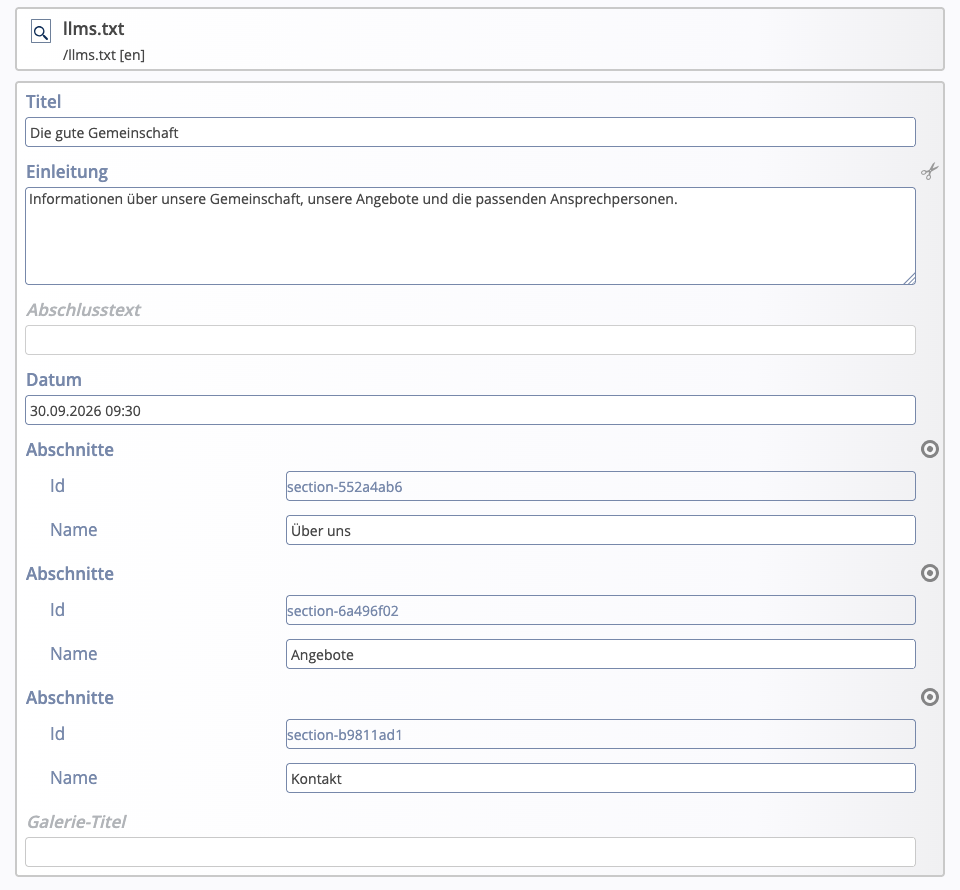
llms.txt Configuration

Open the desired page in the page editor and edit its meta info element. If one does not yet exist, first add a meta info element to the page.

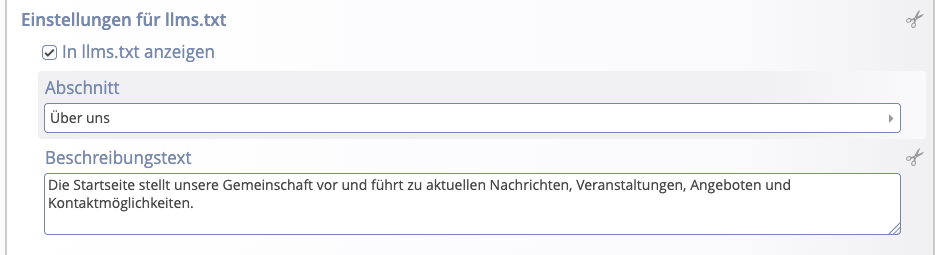
  1. Use the plus sign to add the "Settings for llms.txt" section if it hasn't been created yet.
  2. Check the "Show in llms.txt" box.
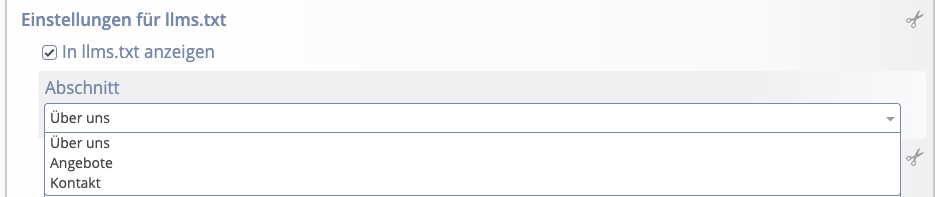
  3. In the “Section” field, select one of the groups you created earlier.
Meta Info: llms.txt Section Selection
  1. Under "Description," enter one or two sentences describing the information provided on the page. For fully manual maintenance, fill out this field for each selected page. Your own text takes precedence over any AI-generated description that may be present.
  2. Save and close the Meta Info element. Repeat the assignment for the remaining pages.

Be sure to select meaningful pages and describe their specific content. Also check the title in the Meta Info element: Mercury uses it as the link text in the output.

Meta Info: llms.txt

Open the llms.txt file in the offline project, for example, by selecting it in Explorer. Check the sections, links, and descriptions.

Then publish the llms.txt configuration, the associated meta-info elements, and, if applicable, the new or modified pages and page content. Afterward, check the public output at https://www.ihre-website.de/llms.txt.

If a page is missing: Check whether its meta-info element is placed on the page, whether “Show in llms.txt” is enabled, and whether a section has been selected that exists in the configuration. Empty sections do not appear in the output.

Which pages appear in the llms.txt file and which sections they are assigned to is always an editorial decision that is maintained manually.

Once this framework is established, individual descriptions can optionally be generated and maintained by an AI service. To do this, the AI service extracts the content from the publicly accessible page and uses it to formulate a description. A manually entered description still takes precedence.

If you would like to use AI-generated descriptions, please contact your web administration team.